MetaTrader 5 and Tapebook
Tapebook Connector
A MetaTrader 5 service that sends your trades to your Tapebook account while your terminal is running.
You install it yourself, once per terminal: five steps, with a token and a server address from Tapebook. It comes with your Tapebook plan or trial.
What it sends
Your executed trades, including entries into positions that are still open, with your broker, server, MT5 account number and account currency. If you use RiskDeck, also the orders it refused, the plans you dropped and the risk you meant to take. It doesn’t send your balance, deposits, withdrawals or trade comments. The full list is in the Tapebook privacy policy.
What it doesn’t do
It doesn’t place, change or close trades, and it never asks for your MetaTrader password.
What it needs
Your terminal has to be running. While it’s closed nothing is sent; trades and events go when it starts again. It runs wherever MetaTrader 5 stays open, your own VPS included, but not on MQL5’s built-in virtual hosting. It works without RiskDeck.
Install
01
In Tapebook, open Settings > Connect MT5 and agree to the install. Click Download Tapebook Connector to get
Tapebook-Connector.zip, then click Make a token and copy the token and the Server address.02
In MetaTrader 5, choose File > Open Data Folder and unzip
Tapebook-Connector.zipstraight into that folder. It putsTapebookConnector.ex5intoMQL5\Services.03
Choose Tools > Options > Experts, tick Allow WebRequest for listed URL and add the server address. It has to match exactly: https://, no slash at the end. If your terminal isn’t in English, the names are different. Look for the option with WebRequest in its name.
04
In the Navigator, open Services, right-click TapebookConnector and choose Add Service. If it isn’t there, right-click Services and choose Refresh.
05
On the Inputs tab, paste the token into Device token from Tapebook and press OK.
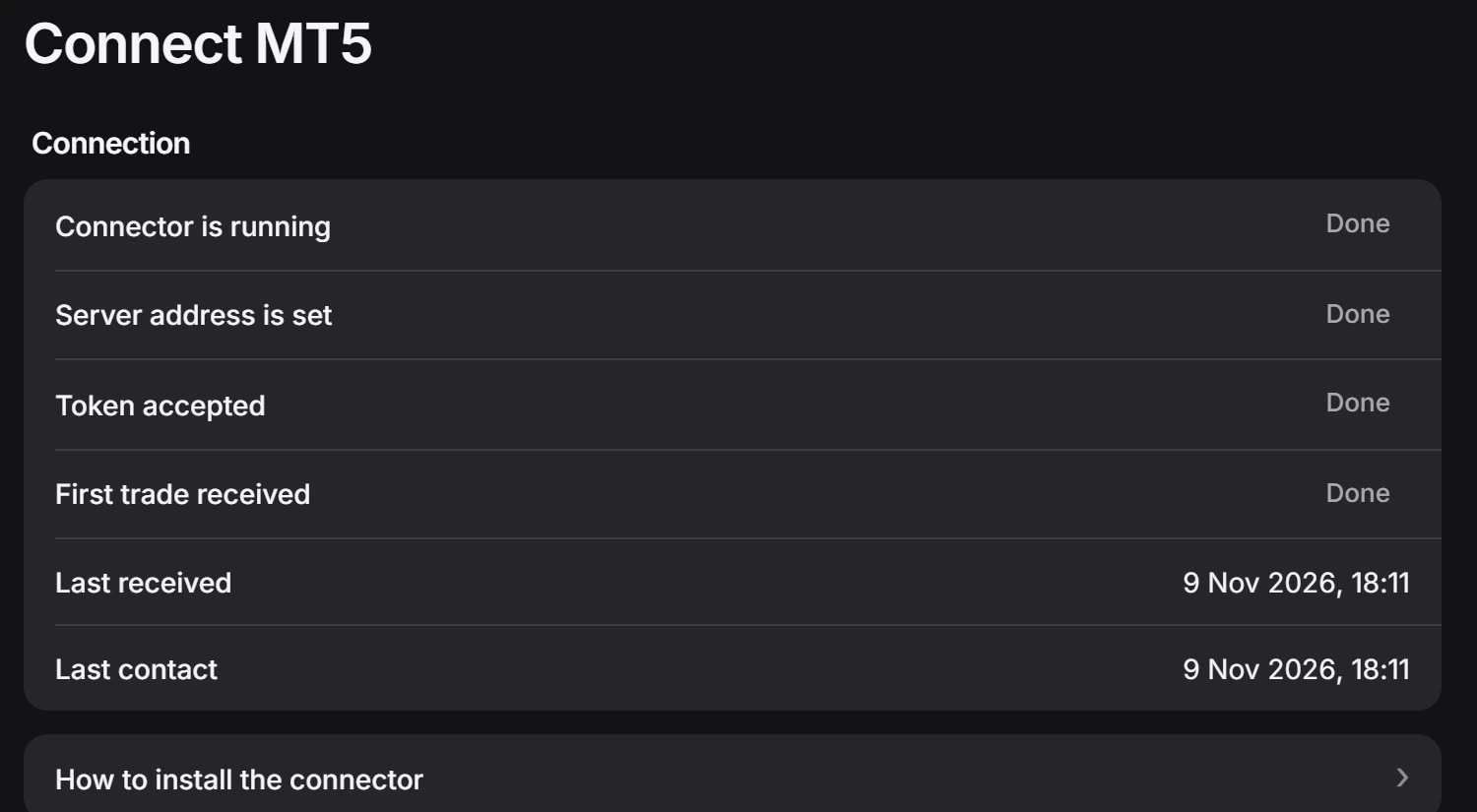
The Experts tab says Tapebook Connector: connected. In Connect MT5, Connector is running, Server address is set and Token accepted show Done; First trade received shows Done once your first trade arrives. From now on the service starts with the terminal. Use one connector per terminal.
In Connect MT5, link the MT5 account to a Tapebook account. New trades wait there until you add them to your journal.
Keep the token private
The token is stored in plain text in the terminal’s config folder. Never send that folder or a copy of the data folder to anyone, support included. If you already did, replace the token in Tapebook.
Remove it
Delete it from the Services list in MetaTrader 5 and click Revoke next to its token in Connect MT5. Revoking stops new data; it doesn’t delete what is already in your journal. To delete what it sent, use Delete stored deals in Connect MT5.
Good to know
Older trades go only if you choose History for that account under MT5 accounts in Connect MT5. A second account in the same terminal counts from the moment it first connects. A new Tapebook account doesn’t receive what the connector has already sent. We can’t promise that every trade arrives, so check your journal against your broker’s statements.